> For the complete documentation index, see [llms.txt](https://help.dollarlabs.io/llms.txt). Markdown versions of documentation pages are available by appending `.md` to page URLs; this page is available as [Markdown](https://help.dollarlabs.io/dollarlabs-ultimate-discounts/unified-discount-engine-v2/limits/reject-discount-codes.md).
# Reject discount codes
## Prevent Loyalty Coupons from Stacking with Sale Discounts
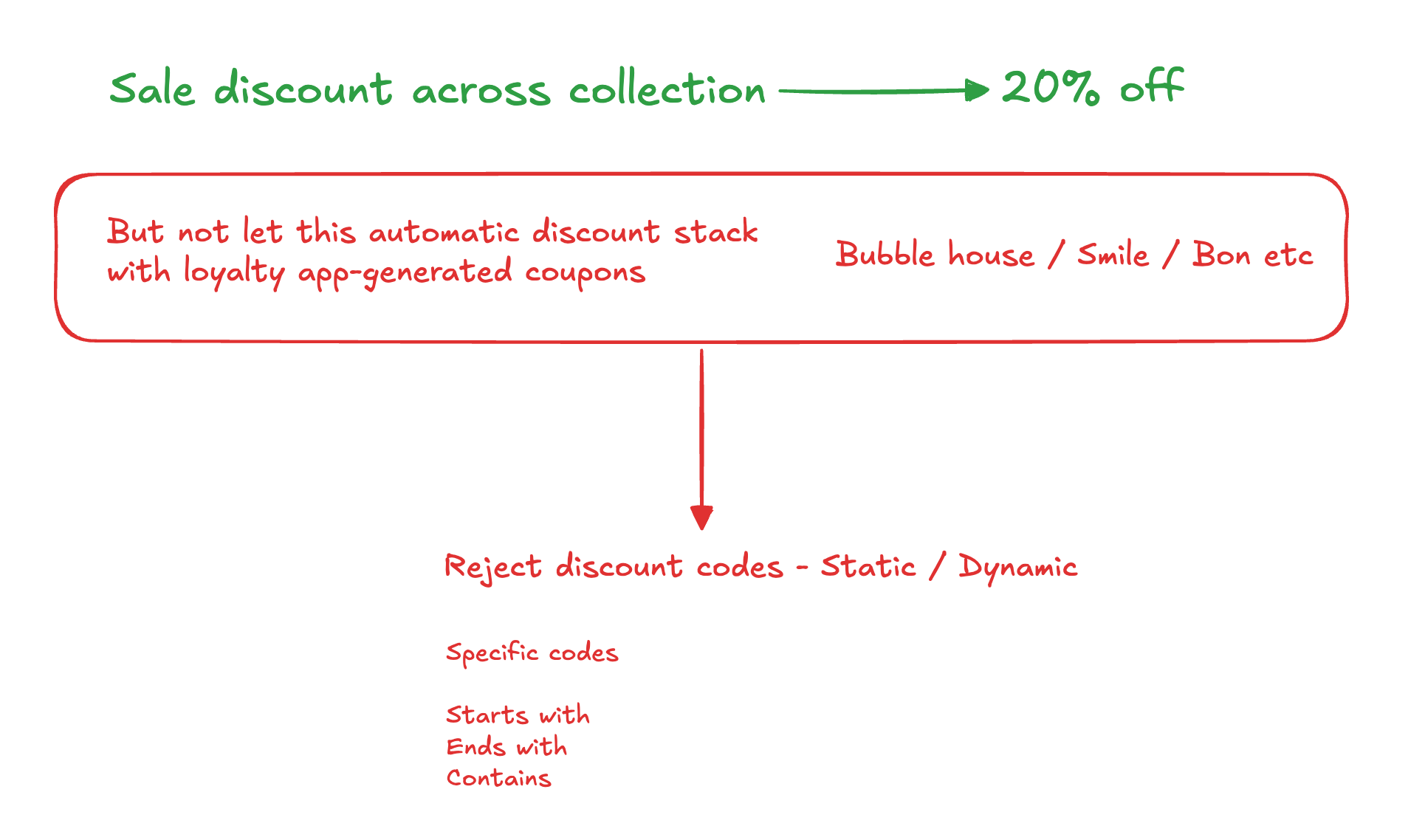
Running automatic sales like **10% off sitewide** is great—but many merchants don’t want **loyalty coupons** to stack on top of those discounts.
This article shows you how to **automatically reject loyalty discount codes at checkout** when a sale is already applied, without manually configuring Shopify combination rules for hundreds (or thousands) of codes.
{% embed url="" %}
***
### The Problem
Most loyalty apps generate **a large number of discount codes**, often dynamically.
Examples:
* `BH_XXXX` (Bubblehouse)
* `SMILE_XXXX`
* `BONN_XXXX`
Shopify’s native **discount combination rules** don’t scale well for this:
* You must explicitly configure which discounts can combine
* It’s impractical when loyalty apps constantly generate new codes
* Managing this manually is error-prone and time-consuming
***
### The Solution: Reject Discount Codes at Checkout
Instead of trying to control **combinations**, you can **reject specific discount codes** at checkout when a sale (automatic discount) is active.
This allows you to:
* Run automatic sales (10%, 20%, etc.)
* Block loyalty coupons from applying on top
* Clearly communicate *why* the coupon was rejected to the customer
***
### How It Works (High Level)
When an automatic discount is applied:
* The app checks any discount code entered at checkout
* If the code matches your rejection rules → it’s rejected
* A custom message explains why the code didn’t apply
***
### Step-by-Step Setup
#### 1. Create or Open Your Sale Discount
* Create an **automatic discount** (example: 10% off all products)
* This can be product-based, order-based, or sitewide
***
#### 2. Open **Create Unified Discount**
* Navigate to **Create Unified Discount**
* Select **Product Discount** (or the relevant discount type)
* Define your rules and targets (e.g., all items in cart)
***
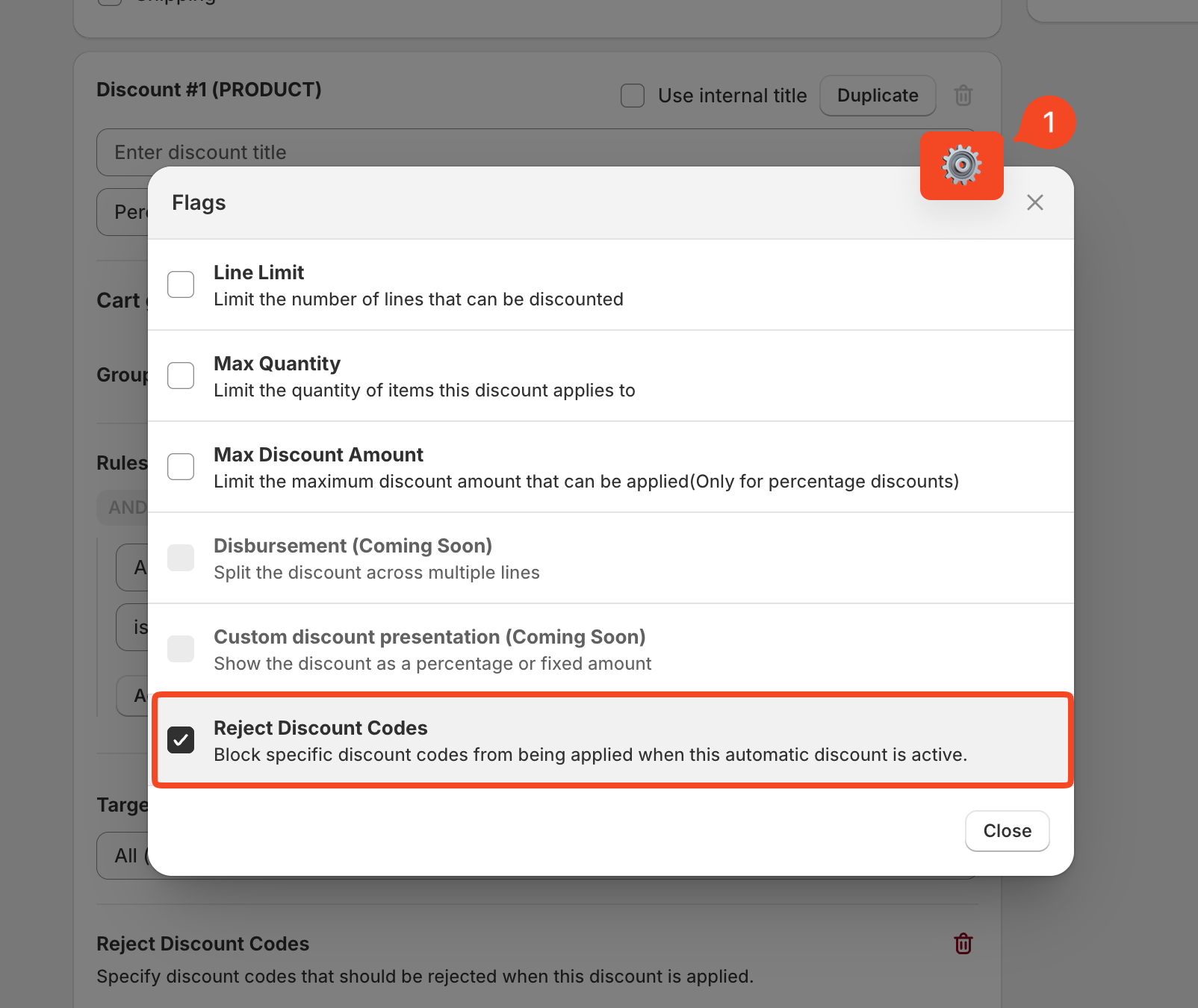
#### 3. Enable **Reject Discount Codes**
Inside the discount config's settings, enable **Reject Discount Codes**.
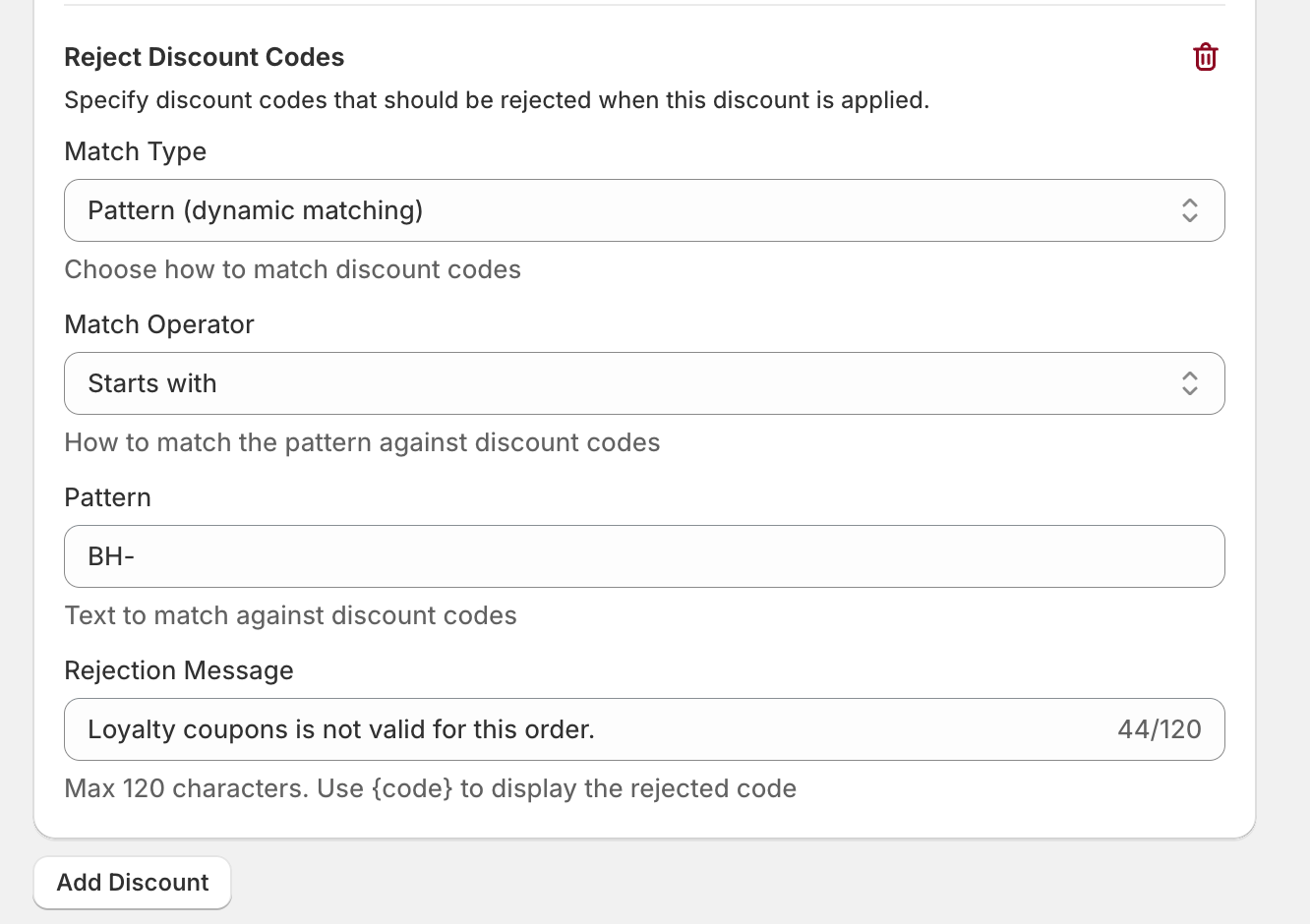
You’ll see a small configuration module with the following options:
***
#### 4. Choose a Match Type
**Option A: Exact (Fits)**
* You manually list specific discount codes to reject
* Best for small, fixed sets of codes
**Option B: Pattern (Recommended)**
* Automatically rejects codes based on a pattern
* Ideal for loyalty apps that use prefixes or formats
***
#### 5. Configure the Match Operator (Pattern Only)
Choose how the code should be matched:
* **Starts with**
* **Ends with**
* **Contains**
Example:
* Starts with → `BH_`
* Starts with → `SMILE_`
* Contains → `LOYALTY`
This works because most loyalty apps follow a consistent naming format.
***
#### 6. Set the Rejection Message
Add a message that customers will see at checkout.
**Example:**
> “Loyalty coupons are not valid for this order.”
You can fully customise this message to match your brand tone and explain that a sale is already applied.
***
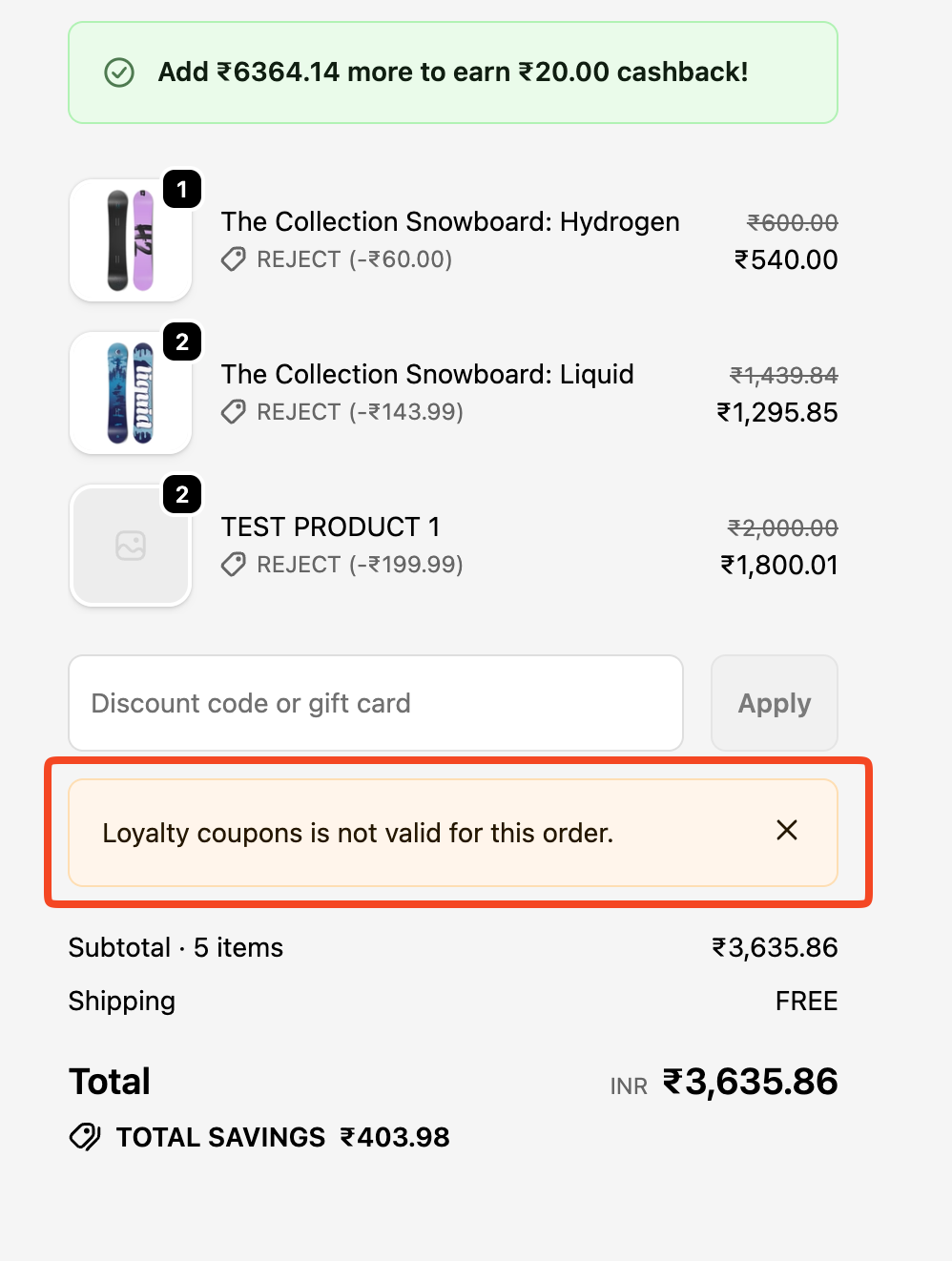
### What the Customer Sees
* The automatic sale discount remains applied
* When a loyalty code is entered, it’s rejected
* The customer sees a **clear reason**, not a silent failure
* No confusion or “random” discount behavior
***
### When Should You Use This?
This setup is ideal when:
* You’re running **automatic sales**
* You use **loyalty or rewards apps**
* You don’t want double-discounting
* You want a clean, scalable solution without managing combinations
***
### Key Benefits
* No need to manage Shopify combination rules
* Works with **dynamic discount codes**
* Scales across all loyalty apps
* Improves checkout clarity and trust
* Fully configurable messaging
***
### Need Help?
If you have:
* Multiple loyalty apps
* Complex discount logic
* Edge cases you’re unsure about
Reach out via **chat or support email**—we’re happy to help you set up even the most complex discount scenarios