> For the complete documentation index, see [llms.txt](https://help.dollarlabs.io/llms.txt). Markdown versions of documentation pages are available by appending `.md` to page URLs; this page is available as [Markdown](https://help.dollarlabs.io/dollarlabs-ultimate-discounts/offer-engine-formerly-price-lists/quick-start.md).
# Quick start
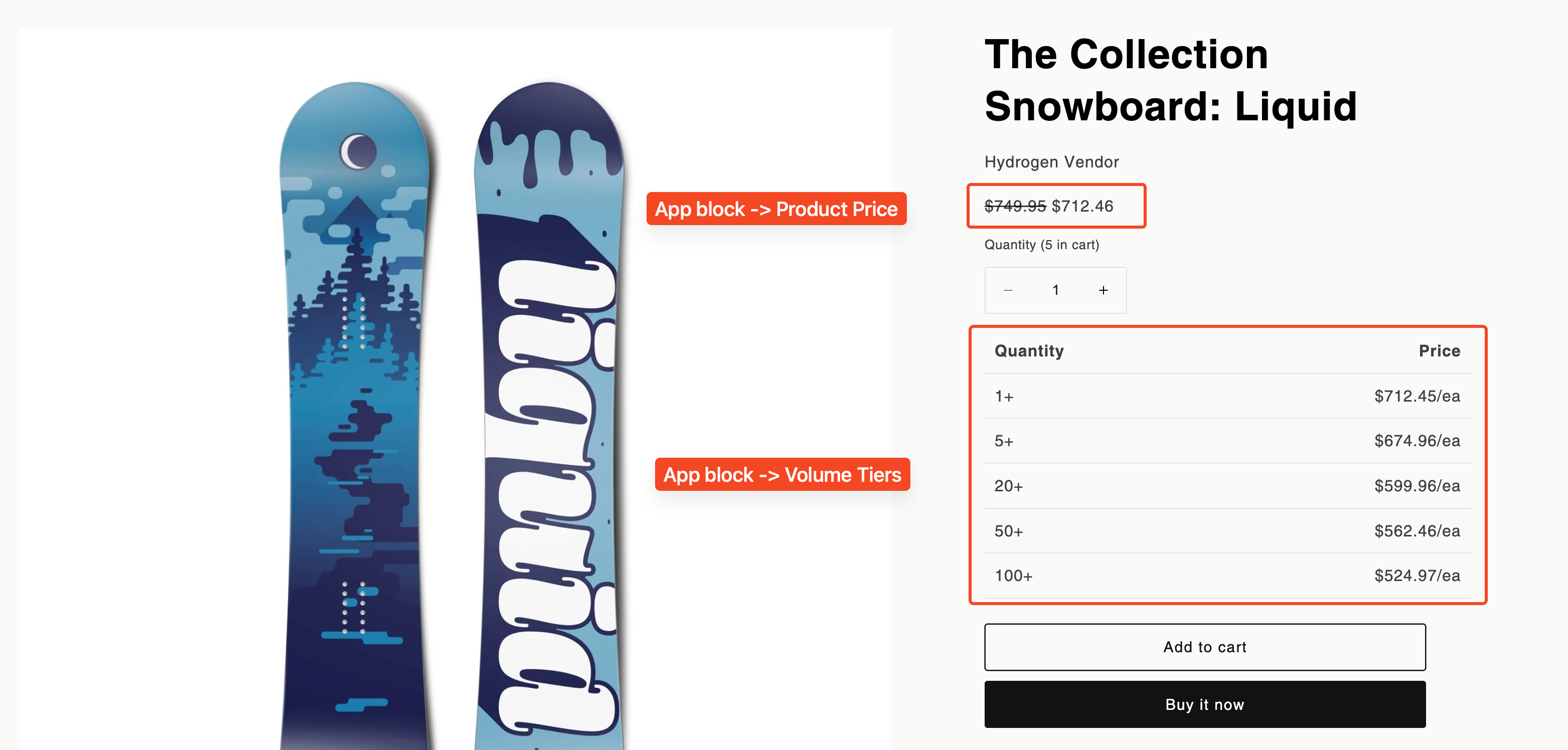
This section details how you can setup a discount that shows up on the product and collection pages on your store (ie - visible to users without adding item to cart)
This article aims to walk you through step by step on how to create a price list for a specific customer tag.
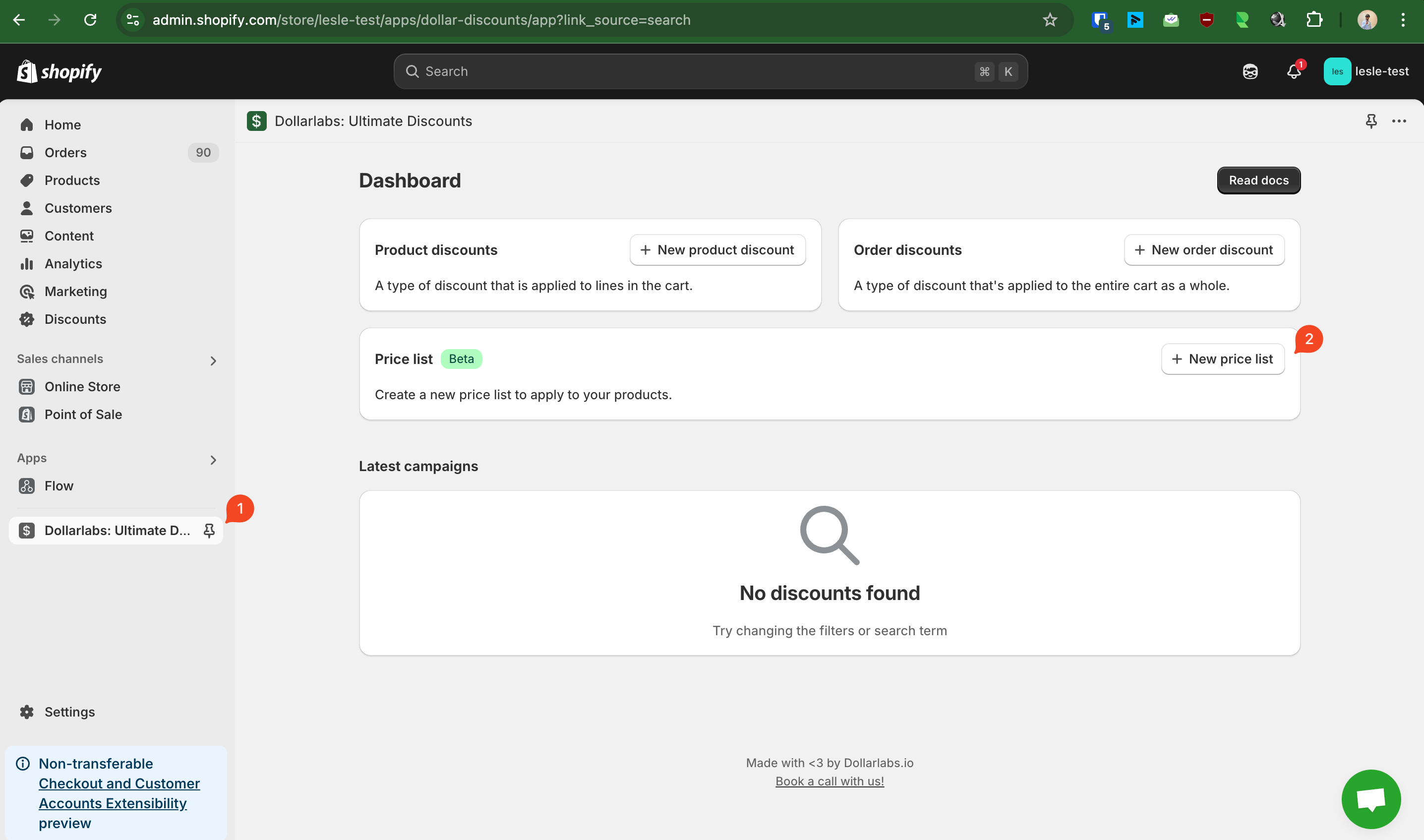
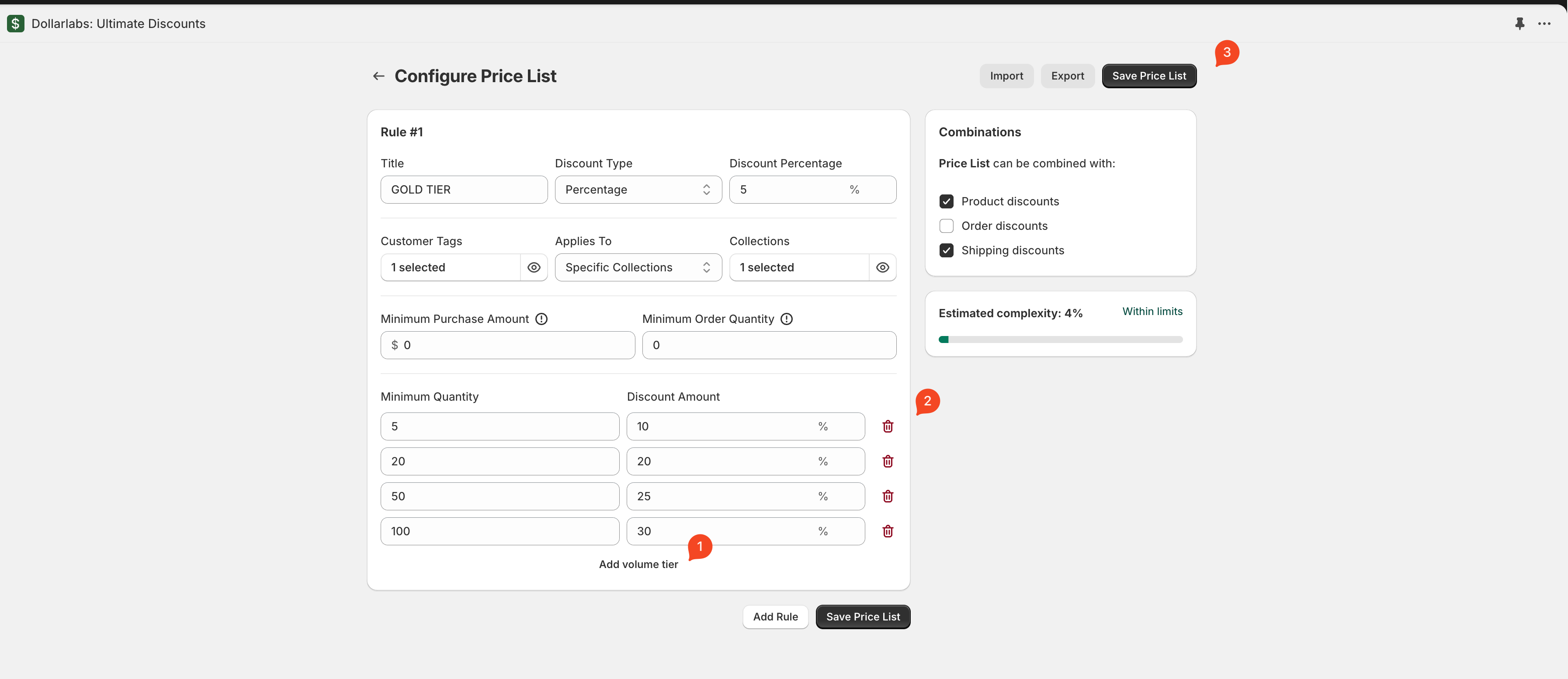
1. Create a price list by heading to Dollarlabs: Ultimate Discounts > New price list
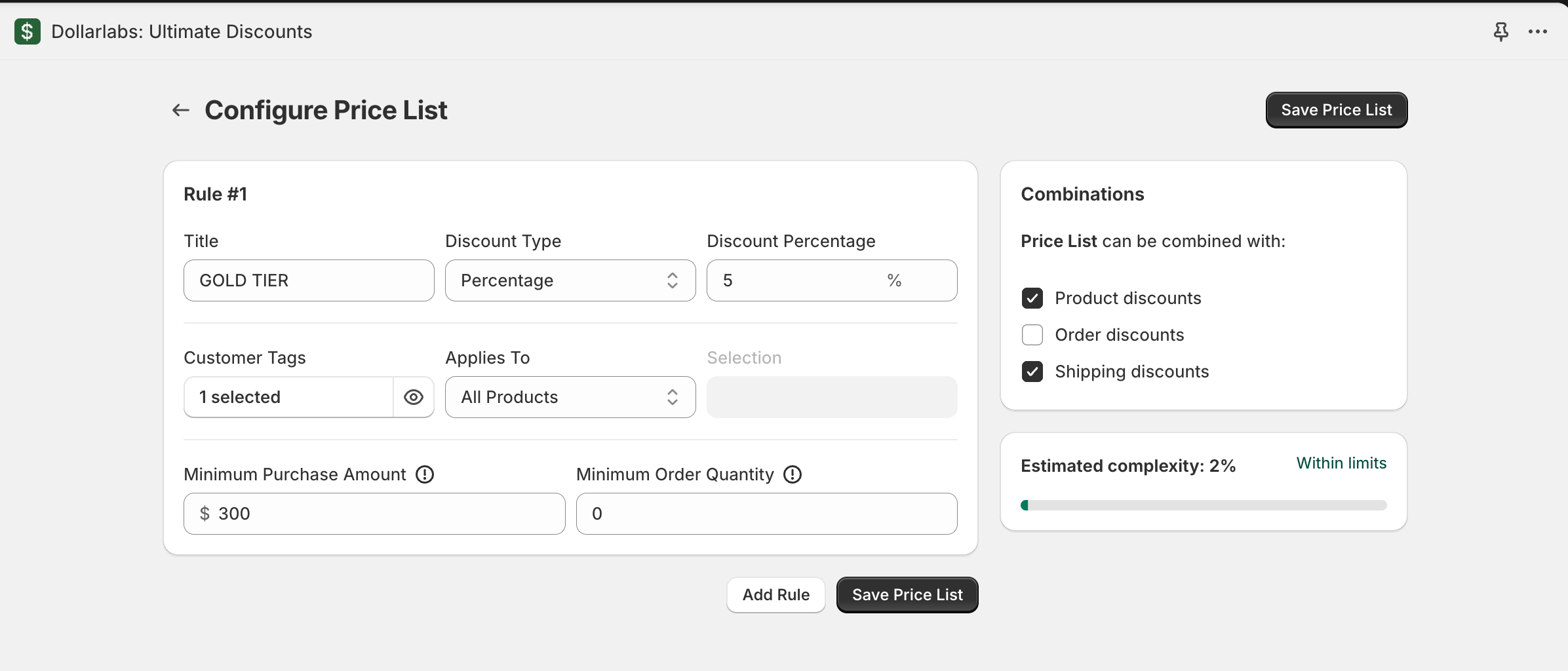
2. In my case, I've selected the `GOLD` customer tag, and I've configured them to receive a 5% discount on all products when the customer has an order subtotal above $300
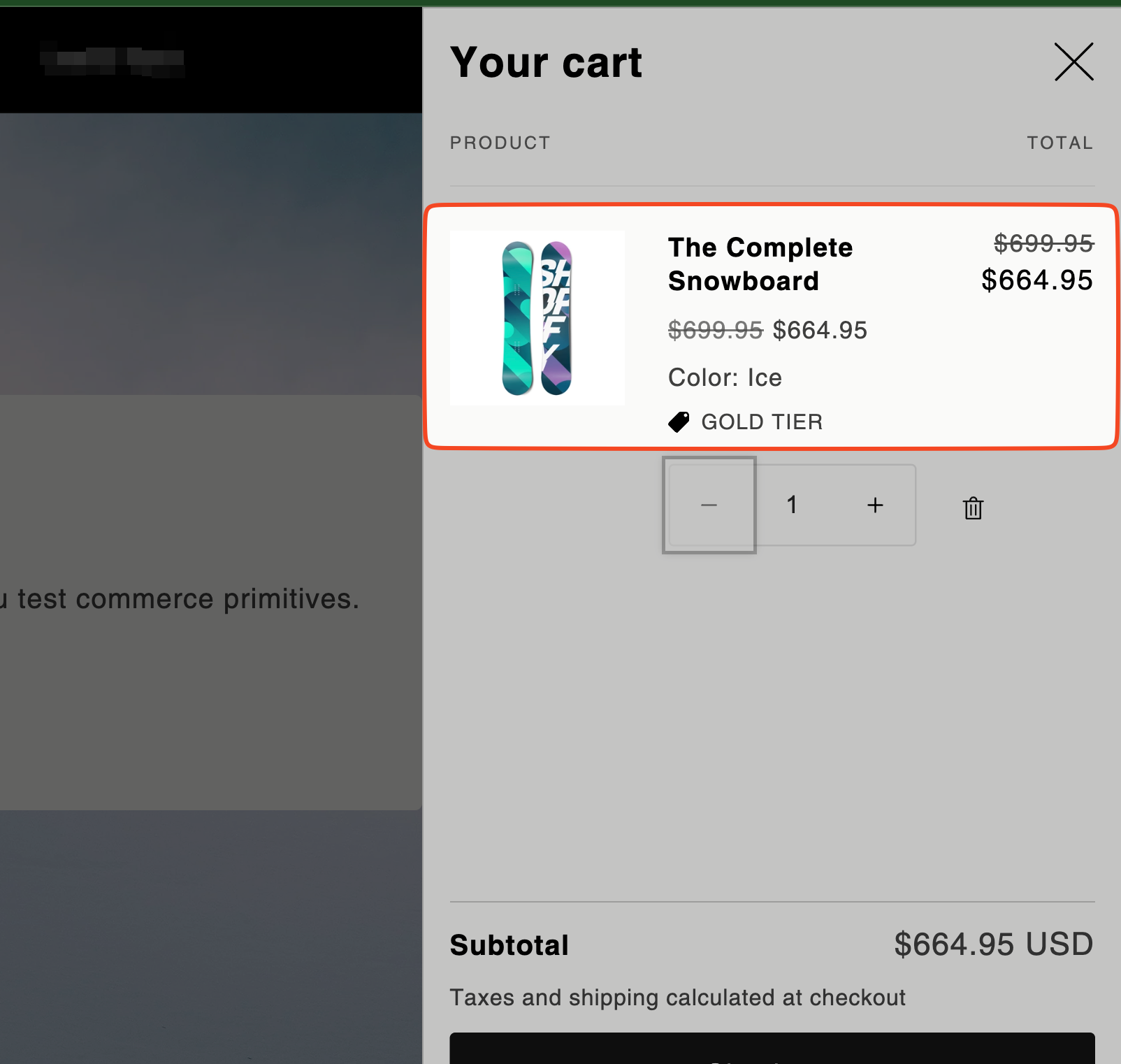
3. Now when I'm logged in as a customer who has the customer tag `GOLD` and add the product to the cart, it automatically applies a discount to the product added
Cart experience when using B2B price lists as an eligible signed in customer
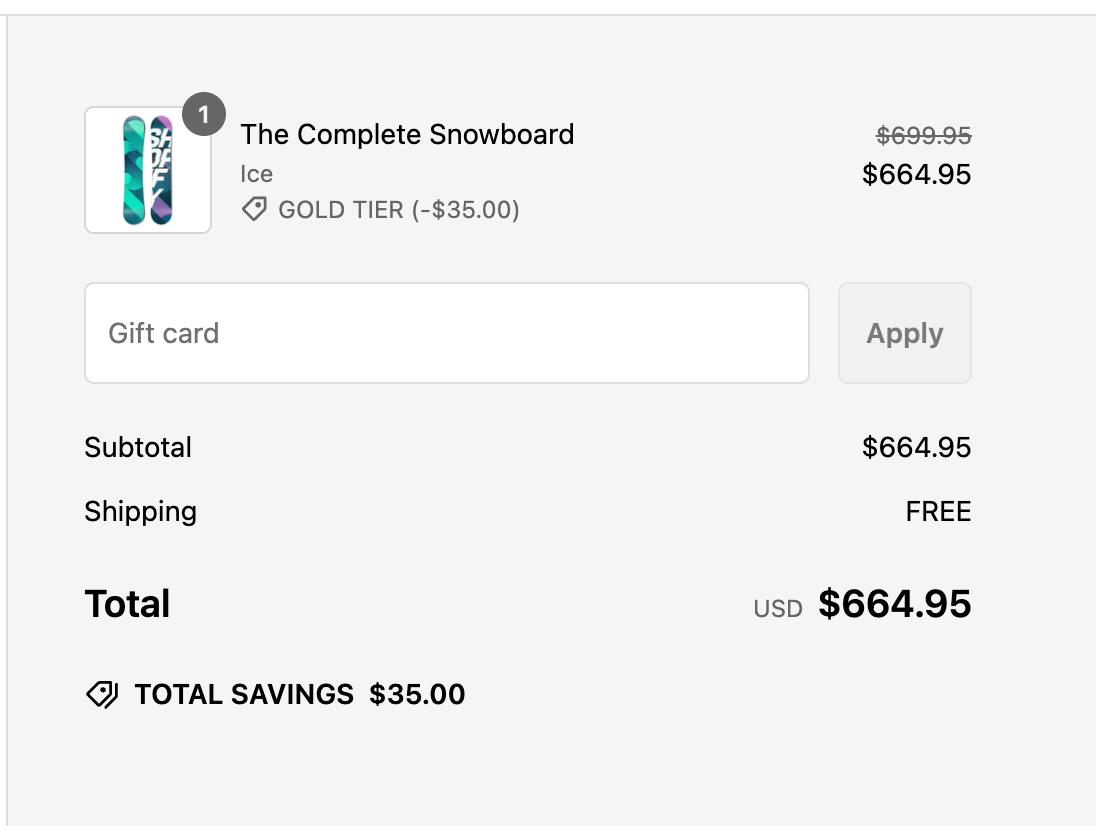
Checkout experience when using B2B price lists as an eligible signed in customer
{% hint style="info" %}
Multiple configurations for the same customer tag are also supported, and the best discount for the item will be applied in the cart and shown on the product page\
\
For example
1. Customer tag - GOLD - 10% discount on all products
2. Customer tag - GOLD - 20% discount on collection A
\
If the customer that has the `GOLD` tag adds a product that belongs to collection A, the best discount (in this case - 20%) will be applied automatically to the product.
{% endhint %}
***
## Configure quantity breaks
Volume / Quantity breaks are easy to add to any Rule - you can click the "Add volume tier" button to add a volume break and then configure the discount to apply at that volume break.
{% hint style="info" %}
Minimum Quantity of 5 means that if the user purchases 5 or more quantity of the eligable product - then they would get 10% discount applied on that item automatically.
{% endhint %}