> For the complete documentation index, see [llms.txt](https://help.dollarlabs.io/llms.txt). Markdown versions of documentation pages are available by appending `.md` to page URLs; this page is available as [Markdown](https://help.dollarlabs.io/dollarlabs-b2b-custom-pricing/show-final-prices-on/add-to-cart-button.md).

# Add to cart button

Add a case-aware quantity picker and Add to Cart button to your product template.

**Add to Cart** lets buyers choose quantities that match your case and minimum-order rules, then add the selected variant to their cart.

Use it when the theme’s normal quantity picker lets buyers choose quantities that your trade rules do not allow. It does not replace **Product Price**, **Volume Tiers** or **Validation Message**.

## Add the block

<figure><img src="https://2844543096-files.gitbook.io/~/files/v0/b/gitbook-x-prod.appspot.com/o/spaces%2FcVBfwy7Yj4tU8TsxkHEr%2Fuploads%2Fgit-blob-f8825f148ec55ba1a3e5b7ddf9aec542da733ae6%2Fadd-to-cart-block-picker-annotated.png?alt=media" alt="Shopify theme editor block picker on the Apps tab with Dollarlabs Add to Cart at the top of the list, above Order Form, Product Price, Validation Message and Volume Tiers."><figcaption><p>Select Add block inside the product details (badge 1), open the Apps tab, then choose Add to Cart, the first Dollarlabs block in the list (badge 3).</p></figcaption></figure>

1. Open **Online Store → Themes → Customize**. Preview a duplicate theme first.
2. Open the product template assigned to the products you are setting up.
3. In the product information section, choose **Add block → Apps → Add to Cart** from Dollarlabs.
4. Place it below the variant selector, near your prices and buying-rule messages.
5. Keep **Show quantity picker** on for a product page.
6. Hide the theme’s duplicate quantity picker and Add to cart controls where your theme allows it. Check whether its **Buy buttons** block also contains accelerated checkout before hiding the whole block.
7. Save and preview the product.

The **Product** setting normally uses the current product. Select a specific product only when you intentionally want this block to add that product.

## What buyers can select

| Your rule                         | How the picker behaves                                                                                                     |
| --------------------------------- | -------------------------------------------------------------------------------------------------------------------------- |
| No case or minimum rule           | Starts at 1 and changes by 1.                                                                                              |
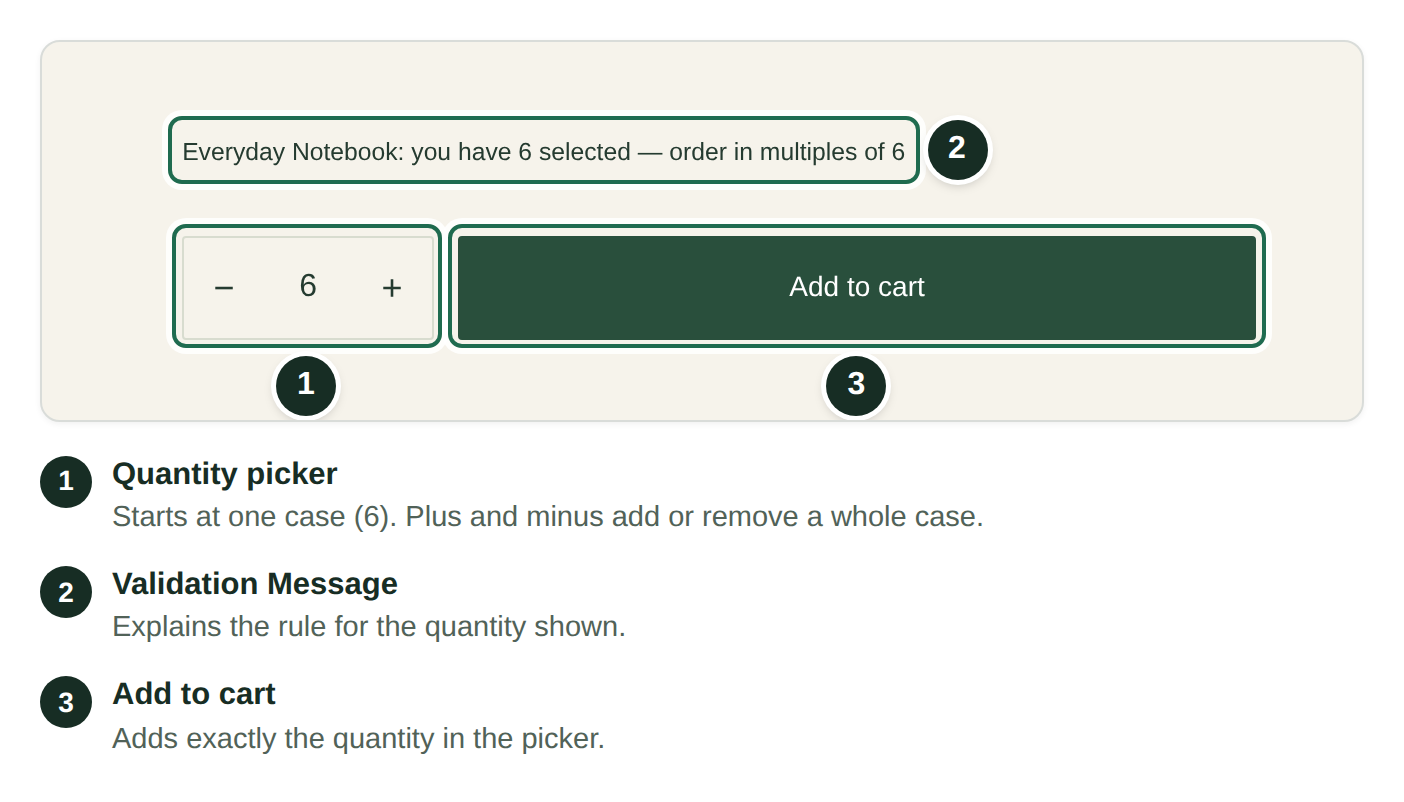
| Whole cases of 6                  | Starts at 6; the buttons select 6, 12, 18 and so on.                                                                       |
| Cases of 6, minimum 12            | Starts at 12; the buttons select 12, 18, 24 and so on.                                                                     |
| Case rule with loose-unit pricing | Starts at the larger of one case or the minimum, then changes by individual units so buyers can choose an incomplete case. |

For whole-case orders, a manually entered quantity is adjusted to a valid case multiple when the buyer adds it. For example, 13 is adjusted to 12 for cases of 6 with a minimum of 12. Encourage buyers to use the picker and place **Validation Message** nearby to explain the rule.

The selected quantity is the amount **added by that click**, not the new total for that variant. If the cart already contains 6 and the buyer adds 12, it contains 18 afterwards.

Changing the variant refreshes its quantity rules and resets the picker to that variant’s starting quantity.

<figure><img src="https://2844543096-files.gitbook.io/~/files/v0/b/gitbook-x-prod.appspot.com/o/spaces%2FcVBfwy7Yj4tU8TsxkHEr%2Fuploads%2Fgit-blob-a3c2b11c5899824c7d84eba4863f1d3645d3374e%2Fadd-to-cart-case-picker-annotated.png?alt=media" alt="Add to Cart block on a product page with a quantity picker that starts at one case, plus and minus buttons and the Add to cart button." width="702"><figcaption><p>The picker starts at a valid quantity and steps by whole cases, so the buyer adds exactly what your rules allow.</p></figcaption></figure>

### Button-only mode

Turn **Show quantity picker** off when you want a button without quantity controls. Each click adds one case, or the configured minimum if it is larger. For cases of 6 with a minimum of 12, each click adds 12.

A theme can place this mode in a product-card layout, but not every collection section supports app blocks. Use [Collection Pricing](/dollarlabs-b2b-custom-pricing/show-final-prices-on/collection-page.md) to display card prices; adding a purchasing button to a custom card can require theme work.

```mermaid
flowchart LR
    A["Case of 6 · minimum 12"] --> B["Picker starts at 12"]
    B --> C["Plus adds 6 → quantity 18"]
    C --> D["Add to Cart adds 18 items"]
```

## Settings

| Setting                                        | What it does                                                                                             |
| ---------------------------------------------- | -------------------------------------------------------------------------------------------------------- |
| **Product**                                    | Chooses the product. Normally uses the current product.                                                  |
| **Show quantity picker**                       | Shows the minus, quantity and plus controls. On by default.                                              |
| **Button label**                               | Text on the button. Defaults to “Add to cart”.                                                           |
| **Hide without login**                         | Replaces the button with a sign-in message for signed-out visitors. Off by default.                      |
| **Sign in message**                            | Message shown when login is required. Defaults to “Sign in to order”.                                    |
| **Hyperlink to login page on sign in message** | Makes that message a sign-in link. Off by default; leave it off if your message already contains a link. |
| **Hide this block entirely when logged out**   | Shows nothing instead of the sign-in message when login gating is enabled. Off by default.               |
| **CSS**                                        | Optional CSS to style the block.                                                                         |

Settings saved in the app’s **Customize → Add to cart button** configuration take precedence over the theme block’s fallback values for quantity-picker visibility, button label and CSS. Product choice and login visibility/message settings are configured on the placed theme block.

{% hint style="info" %}
If several blocks ask buyers to sign in, keep one sign-in message visible and hide the others when logged out. Login visibility changes the storefront display; it is not a product-access control.
{% endhint %}

## After the buyer clicks

The button is disabled while the request runs. On success, it briefly shows **Added** and sends cart-update and cart-open events. Whether your theme opens a drawer depends on its cart integration; check this in your theme.

If Shopify rejects the request, the block shows the returned error below the button and briefly changes the label to **Try again**. Shopify still controls inventory availability. The block does not provide a separate stock-aware maximum or replace Shopify’s sold-out checks.

## Check it before publishing

* Sign in as a customer with a pricing tag. Confirm the starting quantity and plus/minus steps match the selected variant’s rules.
* Change variants and check that the picker refreshes.
* Try a manually entered quantity between case multiples; check the quantity actually added.
* Add the same variant twice and check the accumulated cart quantity.
* If you allow loose units, try an incomplete case and check its cart price.
* Sign out and check the button or sign-in message matches your settings.
* Check the cart drawer, inventory errors and mobile layout. Remove duplicate buying controls before publishing.

For prices, use [Product Price](/dollarlabs-b2b-custom-pricing/show-final-prices-on/product-page.md). For buying rules, see [Volume tiers and case multiples](/dollarlabs-b2b-custom-pricing/getting-started/volume-tiers-and-case-multiples.md) and [Loose-unit pricing](/dollarlabs-b2b-custom-pricing/getting-started/progressive-case-multiples-and-loose-unit-pricing.md).