> For the complete documentation index, see [llms.txt](https://help.dollarlabs.io/llms.txt). Markdown versions of documentation pages are available by appending `.md` to page URLs; this page is available as [Markdown](https://help.dollarlabs.io/dollarlabs-b2b-custom-pricing/price-list/csv-import-and-export.md).

# CSV import & export

Beyond a few dozen variants, the spreadsheet is the real interface. This page is the complete format reference.

## The workflow

Always **export, edit in place, re-import**. Do not hand-build a file from scratch — you will get the column headers or the variant identifiers wrong.

1. Open the price list editor.
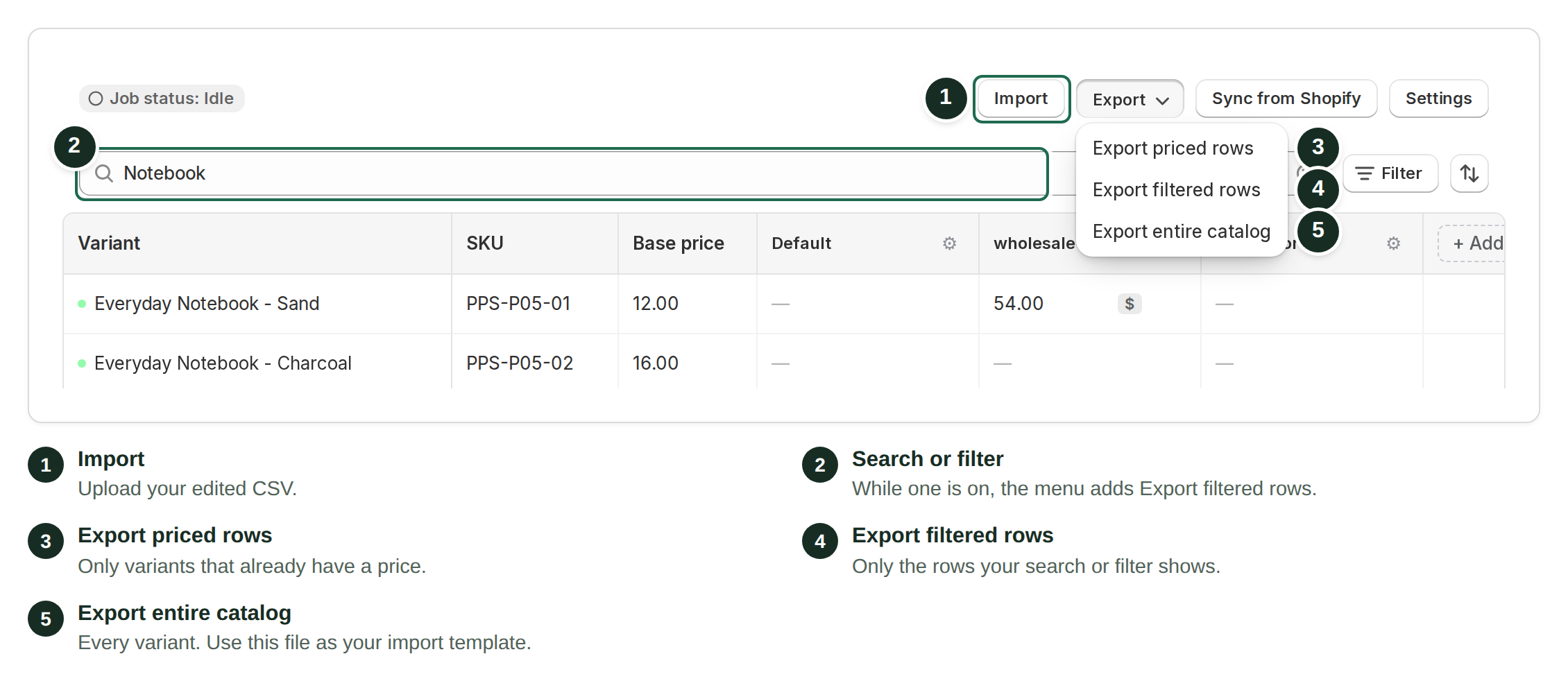
2. **Export** — either *Export priced rows* or *Export entire catalog* (see below).
3. Edit in Excel, Google Sheets or a script.
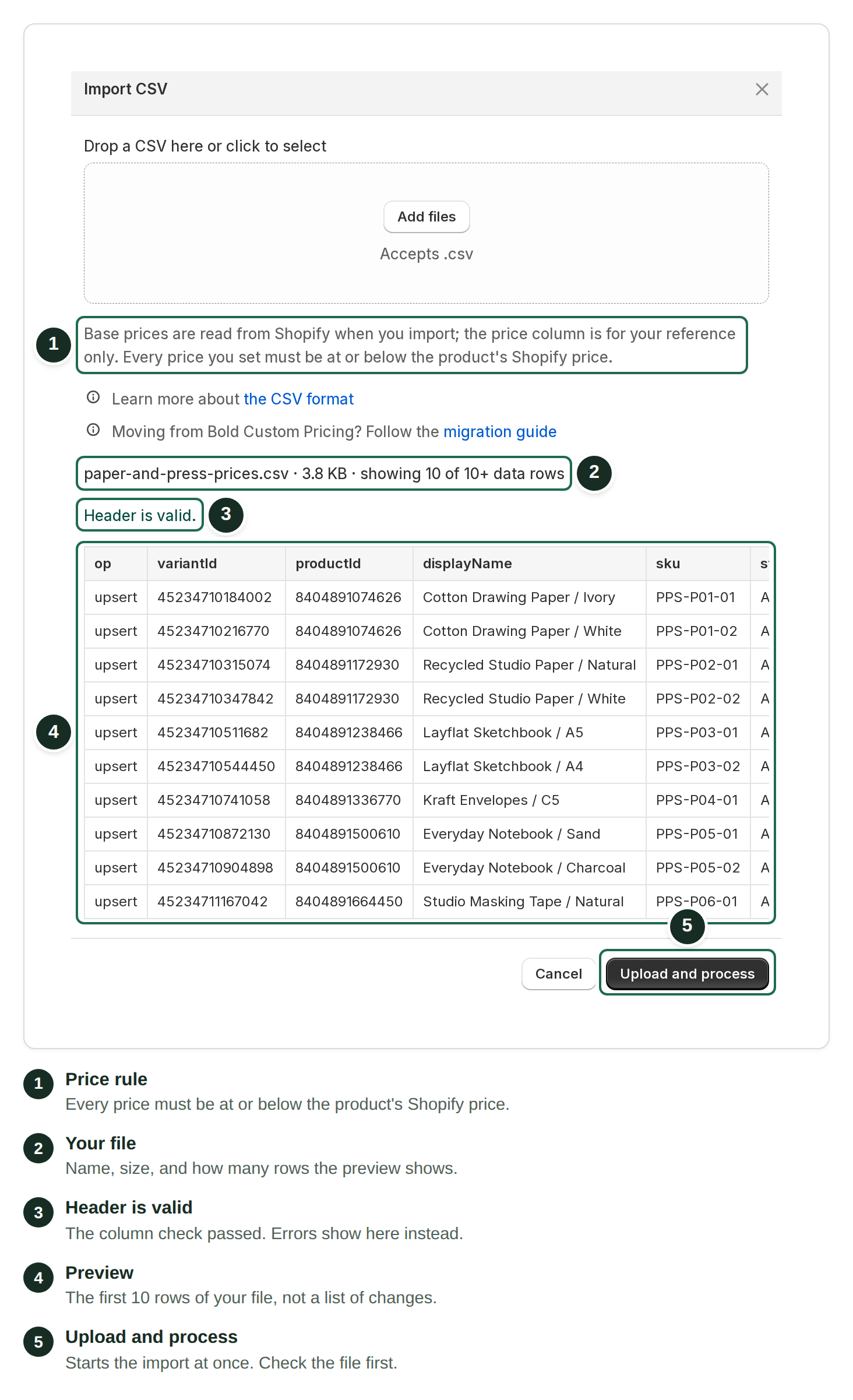
4. **Import**, review the preview, then commit.
5. Watch it finish in [Jobs & history](/dollarlabs-b2b-custom-pricing/price-list/jobs-and-history.md).

## The two exports

**Export priced rows** downloads only variants that currently have pricing. This is the everyday round-trip file — smaller, faster, and safe to edit and push straight back.

**Export entire catalog** includes every variant, priced or not. It honours your current search and [filters](/dollarlabs-b2b-custom-pricing/price-list/find-products.md), so you can export just one vendor or product type. On large catalogs this is delivered **by email** rather than as a direct download, because it is generated in the background.

Use the catalog export when you are pricing something for the first time, or building a file for a migration.

## Columns

The header row is fixed, in this order:

| Column               | Meaning                                                                          |
| -------------------- | -------------------------------------------------------------------------------- |
| `op`                 | Operation for the row. Leave as exported.                                        |
| `variantId`          | Shopify variant ID. The identifier rows are matched on.                          |
| `productId`          | Shopify product ID. Informational.                                               |
| `displayName`        | Product and variant title. Informational — editing it changes nothing.           |
| `sku`                | The variant's SKU. Informational, but the natural key for joining external data. |
| `price`              | The variant's current catalog price. Informational.                              |
| `status`             | Active, Draft or Archived. Informational.                                        |
| `productType`        | Informational.                                                                   |
| `vendor`             | Informational.                                                                   |
| `productTags`        | Product tags. Informational — not customer tags.                                 |
| `pricing[Default]`   | The Default column: pricing that applies to every customer.                      |
| `pricing[<TagName>]` | One column per customer tag.                                                     |

Columns marked informational are exported to help you filter and formula in your spreadsheet. Changing them has no effect — pricing is read only from the `pricing[…]` columns.

{% hint style="warning" %}
`productTags` are **product** tags. The `pricing[…]` headers use **customer** tags. They are unrelated, and mixing them up is a common mistake when writing formulas.
{% endhint %}

## The cell grammar

Everything about a variant's pricing for one tag lives in one cell, as parts joined by semicolons.

<table><thead><tr><th width="150">Part</th><th width="200">Meaning</th><th>Example</th></tr></thead><tbody><tr><td><code>V</code></td><td>A simple price — shorthand for a single tier at quantity 1</td><td><code>18</code></td></tr><tr><td><code>Q:V</code></td><td>A volume tier: minimum quantity <code>Q</code>, value <code>V</code></td><td><code>12:9</code></td></tr><tr><td><code>c:N</code></td><td>Case multiple of <code>N</code></td><td><code>c:12</code></td></tr><tr><td><code>d:p</code> / <code>d:f</code> / <code>d:s</code></td><td>Discount mode for the whole cell — percentage, fixed amount, or specific price (the default)</td><td><code>d:p</code></td></tr><tr><td><code>l:V</code></td><td>Global loose unit price</td><td><code>l:7.2</code></td></tr><tr><td><code>l:Q:V</code></td><td>Loose unit price for the tier starting at <code>Q</code></td><td><code>l:50:7.2</code></td></tr><tr><td><code>p:Q:V</code> / <code>f:Q:V</code></td><td>A single tier forced to percentage or fixed-amount mode, regardless of the cell's mode</td><td><code>p:12:20</code></td></tr></tbody></table>

Order does not matter, and whitespace around parts is ignored.

### Worked examples

```
18
```

$18 per unit. The most common cell in any price list.

```
1:10;12:9;24:7
```

$10 each from 1, $9 from 12, $7 from 24.

```
1:10;12:9;24:7;c:12
```

The same ladder, but quantities must be multiples of 12.

```
1:20;d:p
```

20% off. The `d:p` changes how `20` is read.

```
1:5;d:f
```

$5 off per unit.

```
c:6
```

Case multiple of 6, with no pricing at all. Valid and useful — this enforces carton-only ordering without any discount.

```
1:10;50:7;100:6.5;c:50;l:7.2
```

Case multiple of 50 with a tier ladder, and any leftover loose units at $7.20 each.

```
1:10;50:7;100:6.5;c:50;l:50:7.2;l:100:7
```

The same, but loose units get cheaper at the 100 tier. See [progressive case multiples](/dollarlabs-b2b-custom-pricing/getting-started/progressive-case-multiples-and-loose-unit-pricing.md).

## What happens on import

This is the part worth reading twice.

<table><thead><tr><th width="230">Cell contains</th><th>Result</th></tr></thead><tbody><tr><td>A valid value</td><td><strong>Replaces</strong> everything previously in that cell.</td></tr><tr><td>Nothing (blank or whitespace)</td><td><strong>Erases</strong> that tag's pricing for that variant.</td></tr><tr><td>Something unparseable</td><td><strong>Skipped</strong> — the existing value is left alone, so a typo cannot silently wipe your pricing.</td></tr></tbody></table>

{% hint style="danger" %}
Blank means erase. If your spreadsheet contains all your tag columns but you only filled in some of them, importing it will clear the rest. When in doubt, export, edit, re-import — never assemble a partial file with empty tag columns.
{% endhint %}

The "replaces" rule matters too. If a cell currently holds `1:10;12:9;c:12` and you write `9` into it, you get a flat $9 price with **no tiers and no case multiple**. To change just the price, write the whole cell.

### Number formatting

Values must be plain unsigned decimals — `9`, `9.5`, `0.75`.

Rejected, and therefore skipped:

* thousands separators — `1,200`
* comma decimals — `12,50`
* scientific notation — `1e3`
* currency symbols — `$9.00`
* negative numbers

{% hint style="warning" %}
Spreadsheets reformat numbers without asking. A column formatted as Currency will export `$9.00` and be skipped on import. Format your pricing columns as **plain text** before editing, and check the raw CSV if an import silently changes nothing.
{% endhint %}

## Importing

Choose **Import**, upload the file, and review the preview before committing. The preview shows what will change — this is your last chance to catch a column you did not mean to blank.

Once committed, the import runs as a background job. Large files take a while; the grid may lag behind briefly. [Jobs & history](/dollarlabs-b2b-custom-pricing/price-list/jobs-and-history.md) is the authoritative record, and it is where you download the error CSV if some rows failed.

### Large catalogs

Import in batches of a few thousand rows and let each finish before starting the next. Interleaved imports are processed in order, but a queue of large files is slow to drain and hard to reason about if something fails midway.

## Common problems

**"I imported and nothing changed."**\
Almost always number formatting — the values were unparseable and therefore skipped. Open the raw CSV in a text editor and look at the actual characters.

**"I imported and lost pricing."**\
Blank cells in tag columns. Restore from your previous export; keep the last known-good file.

**"My tiers vanished."**\
A bare number replaced the whole cell. Write the full cell string to preserve tiers and case multiples.

**"Some rows didn't apply."**\
Download the error CSV from [Jobs & history](/dollarlabs-b2b-custom-pricing/price-list/jobs-and-history.md) — it lists the rows and why each failed.