> For the complete documentation index, see [llms.txt](https://help.dollarlabs.io/llms.txt). Markdown versions of documentation pages are available by appending `.md` to page URLs; this page is available as [Markdown](https://help.dollarlabs.io/dollarlabs-b2b-custom-pricing/price-list.md).

# The price list

The editor is where all pricing lives. Open it from the price list card on the app home page.

## The grid

One row per variant, one column per [customer tag](/dollarlabs-b2b-custom-pricing/getting-started/customer-tags-and-columns.md), plus a **Default** column.

Each row shows the variant's display name, SKU and catalog price alongside its cells. A cell shows its configured price, and indicates when it carries more than a flat price — a tier count, or a case multiple.

Above the grid you get a search box, [filters and sort](/dollarlabs-b2b-custom-pricing/price-list/find-products.md), and the action buttons.

## Editing a cell

Type a number straight into a cell for a plain per-unit price. That is the fast path, and it is all most rows need.

For anything else, open the cell's **settings panel**:

* **Case multiple** — force ordering in multiples of this number
* **Discount mode** — *Specific price*, *Percentage* or *Fixed amount* ([discount types](/dollarlabs-b2b-custom-pricing/getting-started/discount-types.md))
* **Loose pricing mode** — *No loose pricing*, *Global (same for all tiers)* or *Per-tier (different per tier)* ([loose pricing](/dollarlabs-b2b-custom-pricing/getting-started/progressive-case-multiples-and-loose-unit-pricing.md))
* **Volume tiers** — **Add tier** / **Remove tier**, each with a **Min qty** and a value field whose label follows the discount mode: **Price**, **Unit % off** or **Unit amount off**

Save the panel to apply.

## Column actions

* **Add column** — add a customer tag. See [Customer tags & columns](/dollarlabs-b2b-custom-pricing/getting-started/customer-tags-and-columns.md).
* **Tag settings** — from a column header: the tag's **Discount title**, **Loose discount title**, and its own [payment and delivery rules](/dollarlabs-b2b-custom-pricing/price-list/payment-and-delivery-rules.md).

## Top-level actions

<table><thead><tr><th width="240">Action</th><th>What it does</th></tr></thead><tbody><tr><td><strong>Import</strong></td><td>Upload a CSV, review the change preview, then commit. See <a href="/pages/8kUVx4pksfcXihFFQ1zW">CSV import &#x26; export</a>.</td></tr><tr><td><strong>Export → Export priced rows</strong></td><td>Downloads only the variants that currently have pricing. The everyday round-trip file.</td></tr><tr><td><strong>Export → Export entire catalog</strong></td><td>Every variant, including unpriced ones, honouring your current search and filters. Large stores get this by email rather than as a direct download.</td></tr><tr><td><strong>Settings</strong></td><td>Discount titles, <a href="/pages/mbCNTy3CdTX0YGPTkYLS">discount combinations</a>, the validation message, and price-list-wide rules.</td></tr></tbody></table>

## Status and jobs

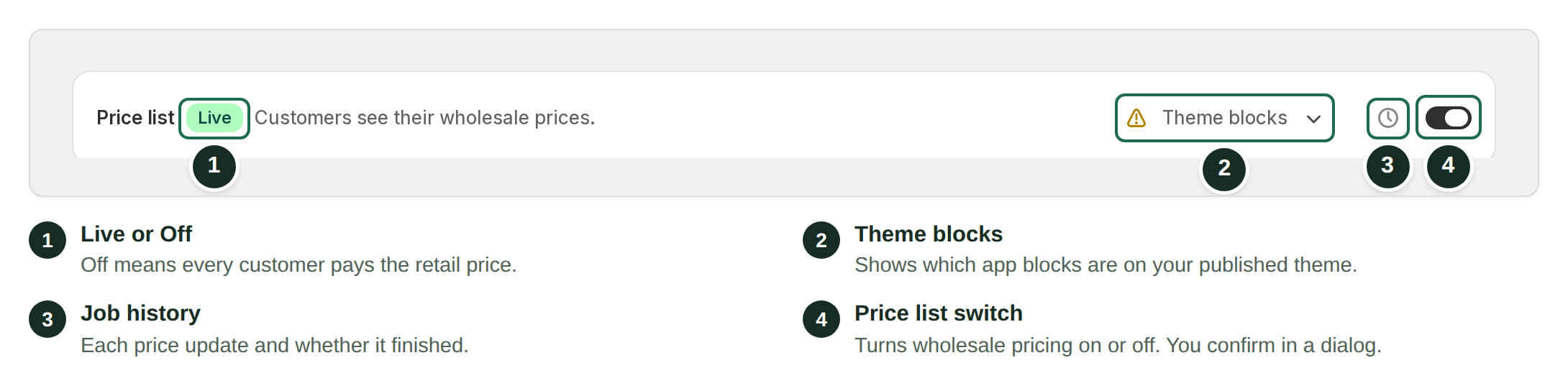
The price list card on the home page carries:

* the **status switch** — nothing is discounted while this is off
* a badge when the most recent background job **failed** or completed **partially**
* a link into [Jobs & history](/dollarlabs-b2b-custom-pricing/price-list/jobs-and-history.md)

Imports, exports and pricing pushes all run as background jobs. The grid can briefly lag a large import; the job history is the authoritative view of what actually happened.

## What the grid does not tell you

* **Whether the price list is enabled.** That is the switch on the home page.
* **Whether the buyer will see the price before the cart.** That is the [storefront blocks](/dollarlabs-b2b-custom-pricing/show-final-prices-on.md).
* **Which tag a given customer will get.** A customer with two priced tags pays [the lowest resulting price](/dollarlabs-b2b-custom-pricing/getting-started/how-pricing-works.md).