> For the complete documentation index, see [llms.txt](https://help.dollarlabs.io/llms.txt). Markdown versions of documentation pages are available by appending `.md` to page URLs; this page is available as [Markdown](https://help.dollarlabs.io/dollarlabs-b2b-custom-pricing/migrations/migrating-from-bold-custom-pricing.md).

# Migrating from Bold Custom Pricing

How Bold Custom Pricing's concepts map onto Dollarlabs, what to do with your exported data and your theme, and a cutover checklist you can run without taking the store down.

Use this guide to move your prices and customer tags to Dollarlabs. Export your pricing first and work on a duplicate theme.

## Map your existing prices

| Existing setting       | Set up in Dollarlabs                                                                                                       |
| ---------------------- | -------------------------------------------------------------------------------------------------------------------------- |
| Customer tag           | A [price list column](/dollarlabs-b2b-custom-pricing/getting-started/customer-tags-and-columns.md) with the same tag name  |
| Fixed price            | **Specific price**                                                                                                         |
| Percentage discount    | **Percentage off**                                                                                                         |
| Amount off             | **Fixed amount off**                                                                                                       |
| Quantity breaks        | [Volume tiers](/dollarlabs-b2b-custom-pricing/getting-started/volume-tiers-and-case-multiples.md) for each variant and tag |
| Customer group pricing | Prices in that group's tag column for the relevant variants                                                                |

Keep your existing Shopify customer tags. Column names must use the same spelling. Capital letters don't matter.

## Set up storefront prices

Add the [Dollarlabs theme blocks](/dollarlabs-b2b-custom-pricing/show-final-prices-on.md) to your duplicate theme. Check product pages, collections, the cart and checkout before publishing.

## Moving your pricing data

Match the products in your existing export to your Dollarlabs export by SKU.

### Get both files

1. In **Bold**, go to Import/Export and export your pricing.
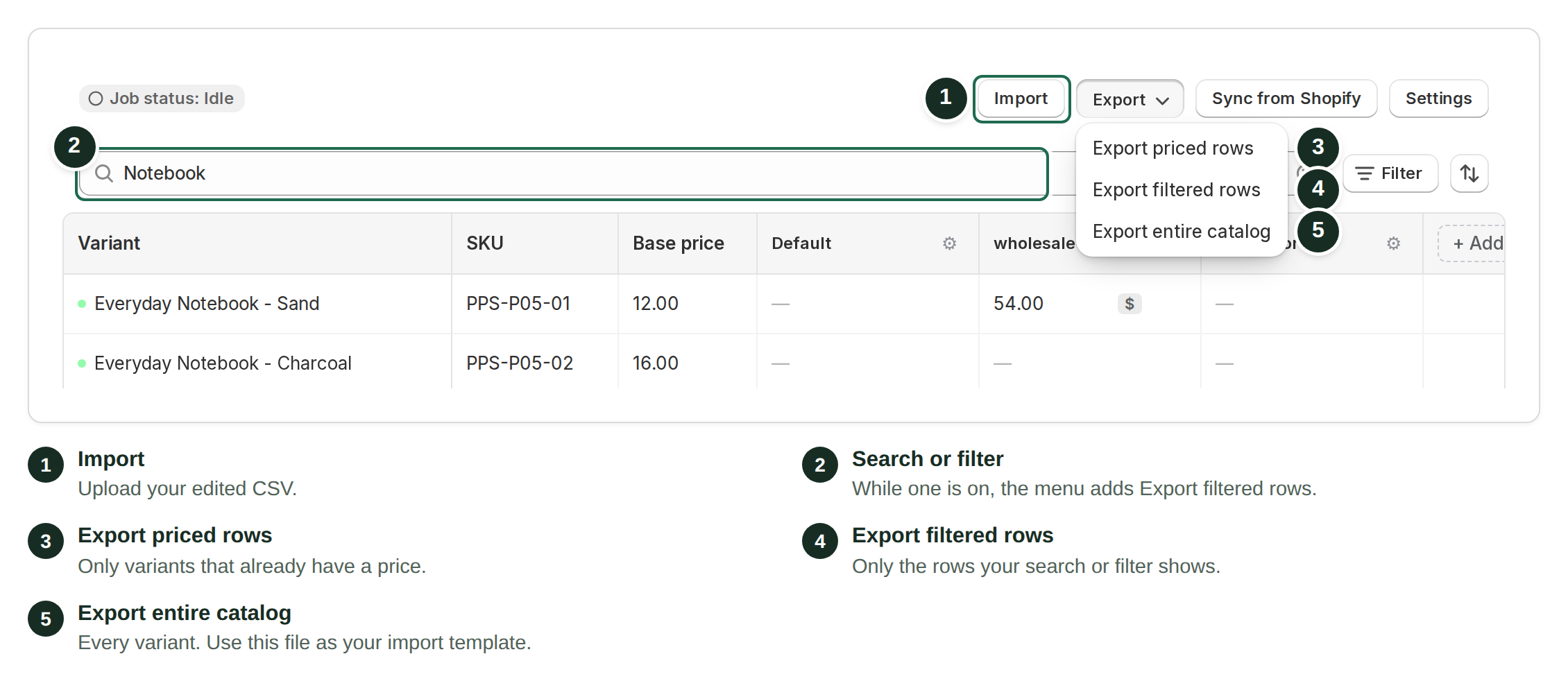
2. In **Dollarlabs**, open the price list and choose **Export → Export entire catalog**. This is your target format. Keep its `variantId` column: Dollarlabs uses that ID to identify each imported row. The `sku` column can help you match the two exports before import.

<figure><img src="https://2844543096-files.gitbook.io/~/files/v0/b/gitbook-x-prod.appspot.com/o/spaces%2FcVBfwy7Yj4tU8TsxkHEr%2Fuploads%2Fgit-blob-c0672be5b925960a16e503b137405a08a8106734%2Feditor-export-menu-annotated.png?alt=media" alt="Price list editor toolbar with the Export menu open, showing Export priced rows, Export filtered rows and Export entire catalog."><figcaption><p>Export the entire catalog to get the file your converted prices must match.</p></figcaption></figure>

### Know the two formats

Bold's export has a `Price Type` column whose value applies to the row. From Bold's documentation:

* `%` — a percentage discount
* `-` — a fixed amount off the original price
* `$` — a fixed price, the new lower price

Ours puts everything in the tag's cell. The complete grammar — prices, tiers, case multiples, loose pricing and price types — is documented in [CSV import & export](/dollarlabs-b2b-custom-pricing/price-list/csv-import-and-export.md). Read that first; it is the target you are converting to.

{% hint style="warning" %}
**Combine quantity tiers into one cell.** An export may have a separate row for each tier, with `Qty` as its minimum quantity. Dollarlabs stores the tiers for each variant and tag in one cell.

For example, three tier rows can become `1:10;12:9;24:7` in one cell.
{% endhint %}

### Convert it

With both formats in front of you, the conversion is a spreadsheet job: join on SKU, pivot Bold's per-tier rows into one cell per variant per tag, and translate `Price Type` into our **Price type**.

Check a sample of converted rows against the original prices before importing. Include each discount type and at least one product with quantity tiers.

{% hint style="danger" %}
**An empty cell erases** that tag's pricing for that variant — it does not mean "leave unchanged". Export first, edit in place, re-import. Never import a partial file that has all tag columns present but blank.
{% endhint %}

**Check SKUs before matching the files.** Missing or duplicate SKUs can prevent a correct match. Preserve the Dollarlabs `variantId` for every row; importing by SKU alone is not supported.

## Removing Bold's theme code

Bold installs Liquid into your theme, and uninstalling the app does not remove it. Check for leftover price markup if prices appear twice or flicker.

What to look for depends on which version of Bold's install you have.

**V3 installs:**

* `snippets/bold-pr.liquid`
* In `theme.liquid`: `{%- render 'bold-pr' -%}` and a script tag loading `cspqb.js` from `/tools/shappify-csp/…`
* Price markup wrapped in `<span class="money" data-product-id="…">`
* `<script type="application/json" class="bold-product-json">` after product loops
* Cart markup carrying `data-line-index`, `data-line-total` or `data-cart-total`

**V1 and V2 (older installs):**

* Snippets: `bold-common.liquid`, `bold-includes.liquid`, `bold-product.liquid`, `bold-variant.liquid`, `bold-cart.liquid`, `bold-cart-item.liquid`, `bold-csp-metafield-variant.liquid`
* In `theme.liquid`: `{% render 'bold-common' %}{% render 'bold-includes' %}`, and a `shappify_customer_tags` variable
* A script tag loading `csp.js` from `cp.boldapps.net`
* Spans in the cart template marked `Bold-theme-hook-DO-NOT-DELETE`

Searching your theme for `bold-`, `shappify` and `boldapps` will surface most of it.

{% hint style="info" %}
Work on a duplicate, unpublished theme. Bold also offers to help strip their Liquid — if your install is old or heavily customised, ask them before you start deleting.
{% endhint %}

## Cutover checklist

Keep the Dollarlabs price list disabled while importing and checking your data. A duplicate theme isolates the storefront layout, not the store’s discounts. Plan the pricing cutover before enabling the list.

1. **Install** [**Dollarlabs: Wholesale & B2B Pricing**](https://apps.shopify.com/dollarlabs-b2b-price-list?utm_source=helpdesk\&utm_medium=docs\&utm_content=migrate-from-bold) and let the initial catalog setup finish. See [Quick start](/dollarlabs-b2b-custom-pricing/getting-started.md).
2. **Add your tag columns**, spelled exactly as the Shopify customer tags are spelled. Capital letters don't matter; spelling and spaces do.
3. **Import your converted CSV**, leaving the price list **disabled**.
4. **Spot-check the grid.** Search for SKUs you know well and confirm each tag column reads what you expect. Check a tiered product and a case-quantity product specifically.
5. **Duplicate your theme.** Everything from here happens on the unpublished copy.
6. **Add our storefront blocks** to the duplicate: [Product Price](/dollarlabs-b2b-custom-pricing/show-final-prices-on/product-page.md), [Collection Pricing](/dollarlabs-b2b-custom-pricing/show-final-prices-on/collection-page.md), plus **Volume Tiers** and **Validation Message** if you use tiers or case quantities.
7. **Switch the pricing setup at the agreed cutover time.** Disable the previous pricing discounts, enable the Dollarlabs list, and test with a tagged customer. Product page, cart and checkout should agree. This changes pricing store-wide, including the live theme.
8. **Remove Bold's theme code** from the duplicate, then re-test the product page, cart and checkout. Watch for prices rendering twice or flickering.
9. **Publish** the duplicate theme.
10. **Remove the previous app when checks pass.** Keep its pricing disabled while you check orders. Retain your exports in case you need to restore the earlier setup.

{% hint style="info" %}
While you work on the duplicate theme (steps 5–8), the **Theme blocks** status on the app home page still shows your published theme. Check the duplicate in its theme preview instead.
{% endhint %}

{% hint style="success" %}
Test with an untagged customer too. They should see normal retail prices, with no wholesale pricing and no leftover Bold markup.
{% endhint %}

## Frequently asked, coming from Bold

**Do I have to re-tag my customers?**\
No. Bold uses ordinary Shopify customer tags and so do we. Just make sure your column headers use the same spelling as the tags.

**What replaces auto-tagging?**\
Shopify Flow can tag on order count or spend. For applications, a [wholesale form](/dollarlabs-b2b-custom-pricing/wholesale-forms/approvals-and-automations.md) can create and tag the customer when you approve them.

**Can a customer have more than one priced tag?**\
Yes. They pay the lowest resulting price — see [how pricing works](/dollarlabs-b2b-custom-pricing/getting-started/how-pricing-works.md).

**Will my quantity-breaks table look the same?**\
Not identical, but the **Volume Tiers** block is configurable: column labels, suffixes, whether to show savings, and custom CSS. See [Volume tiers & case multiples](/dollarlabs-b2b-custom-pricing/getting-started/volume-tiers-and-case-multiples.md).

**I have tens of thousands of variants.**\
Import in batches and let each one finish — watch [Jobs & history](/dollarlabs-b2b-custom-pricing/price-list/jobs-and-history.md) between batches.